
The Week Ahead Planner
Lay out a whole week of work, balance each person's hours, place routine and one-off jobs, then send the week to the crew
On this page
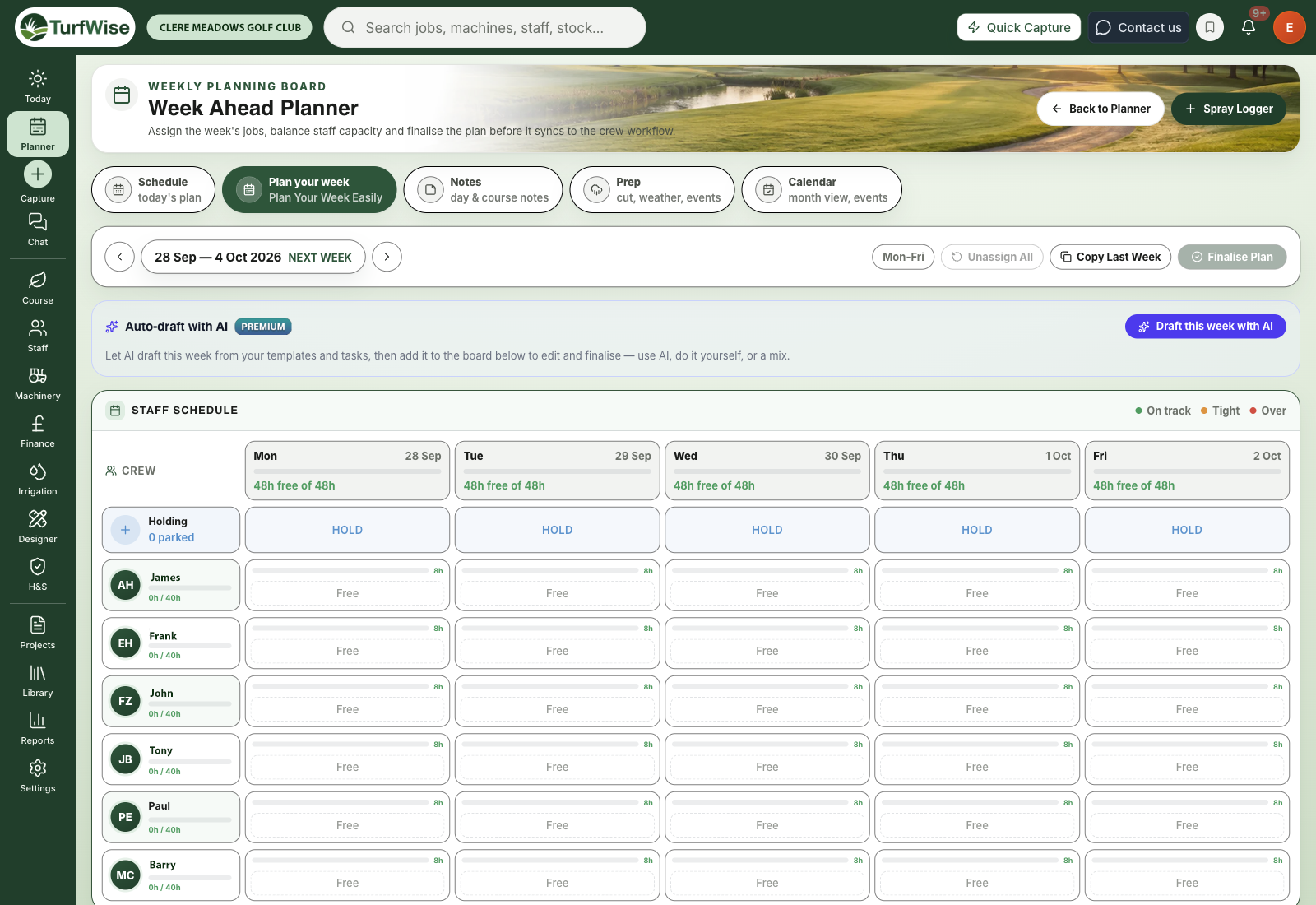
The Week Ahead Planner lets you hand out a whole week's work on one board, see who has room for more, and then send the week to the crew so every job lands in the Planner and on their phones.
Open it from the Planner: click Plan ahead › Plan your week, or Week in the Day / Week / Month switch above the day board.
 Open full-size image ↗
Is next week covered?
The green card at the top answers that straight away.
- The headline says where you are:
- Not yet while there's still work to place: nothing planned, routine jobs missing from the week, or jobs waiting in Holding. It shows how much of the crew's time is still free, such as Not yet · Still 82% of time available, and the line underneath says what's left to place.
- Nearly when only a few things are left to sort.
- Yes when your routine work is on the board and nothing needs sorting.
- Put them in Holding. When routine jobs are missing, one click puts each on its usual days in Holding, ready to hand out.
- The tiles show the hours Planned, the hours Still free, what's In holding and how many of your Routine jobs are fully on the board.
- To sort before it goes out lists anything that needs a look. Click Show on one and the board scrolls to the person and day, ringed in green.
- One-click fixes. Where the planner can see an answer, the item has a button that does it for you, such as Give Weed spray bunkers to Ewan or Hand them out. It only suggests someone who has the time free that day and, for a job that needs certain skills, is qualified for it. The job stays on the same day. Nothing moves until you click.
Time off is already taken off the hours. Holidays, sickness and TOIL all count, and part days only take off the hours booked, from the end of the shift.
What gets flagged
A day booked past its shift, a job on someone's day off, jobs still in Holding, someone down for a job they aren't qualified for, a job whose weather settings the forecast breaks, routine jobs missing from the week, and one machine on two people's jobs the same day. Nothing is changed unless you click a fix; it's there so you can decide.
Qualifications
If a job comes from a job template that needs certain skills (spraying, say), the planner checks the person it's on as soon as you place it, the same check that runs when you send. A job on someone who isn't qualified is marked on its chip and listed at the top, and the week can't be sent until it's on someone who is.
Weather
Give a job the weather it needs and the planner checks it against the Weekly Outlook for the day it's planned:
- Needs a dry surface: flagged if any measurable rain (0.1 mm or more) is forecast that day.
- Not below / Not above (°C): flagged if the forecast low or high for the day goes outside it.
- Wind up to (km/h): flagged if the forecast wind for the day is above it.
A day with no figure for a setting is never flagged for it. Days beyond the forecast have no figures, and days already past have no wind figure.
Set these on a routine job with the cloud button next to it in Jobs to place, or when you save a new routine job (New job › More › Save as a routine job). Jobs from a job template use the template's own weather settings. A flagged job gets a rain-cloud mark on its chip. It's a worth a check, not a block: you decide.
When you send the week, each job takes its weather settings with it, so the job's details on the day board show what weather it needs.
How does the board work?
Who's doing what has one row for each person and one column for each day.
- Day headers show the date, the forecast and growth for that day (from the Weekly Outlook, on Premium, for the days it covers), and the team's hours planned against hours available.
- Each person's row shows their hours planned for the week against the hours they have, like "28h of 37h".
- Each cell shows the jobs placed there and how much room is left: 2h free, Full or, in red, 1.5h over. A day with nothing on it just shows its free hours. A day off shows the type of leave, and a part day shows a striped band such as TOIL · 4h off, end of day.
- Colours come from your course areas. Each job takes the colour of its area, set in Course Areas (Course › Disease & areas), the same colours the Schedule uses. The bars in the day headers, each cell and each person's row show the work in those colours. The key above the board shows each area's hours for the week.
- Holding, the top row, is for jobs you want on a particular day but haven't given to anyone yet.
Which area is a job on?
The planner uses, in order: the job's own area, the area on its routine job, and otherwise the course area whose name is in the job's name ("Cut Greens" goes with Greens, "Cut Rough CD" with Rough (CD)). A job with no match is grey.
To set or change a routine job's area, click the area line under it in Jobs to place, or its settings button. A hollow square means the area was matched by name and hasn't been set yet. A job keeps its routine job's area when you send the week. A name match is only used for colour.
Make the board easier to read
Areas that share a colour look the same on the board. Give your main areas clearly different colours in Course Areas (Course › Disease & areas).
Moving around the weeks
Use the arrows either side of the week to move backwards and forwards. Back to next week takes you straight back.
The board shows Monday to Friday by default. Click Whole week to add the weekend. If there's weekend work or weekend cover that week, the weekend is always shown.
How do I start a new week?
When a week is empty, the card offers three ways in:
- Lay out the routine week puts each routine job on its usual days, into Holding. Then you hand them out person by person. Running it again won't add the same job twice.
- Copy last week brings last week's plan forward, same people and same days. If a job lands on someone's day off, it's flagged for you to move.
- Draft it with AI (Premium) drafts the week day by day. Add the draft to the board, then change whatever you like.
How do I add work to the week?
Use Jobs to place, next to the board. It has two lists:
- Routine: the jobs you do every week. The little day dots show where each one already sits this week: filled when it's on someone's day, dashed when it's in Holding, and outlined in amber when it's due that day but not planned.
- Jobs: one-off work waiting for a slot. Add one with Add a job to the list, or click the pencil to edit one.
Pick a job
Click Place next to it. A green bar tells you what you're placing.
Choose a person and day
Click Place here in the cell you want, or Hold here in the Holding row. Changed your mind? Click Cancel.
You can also drag a job by its handle straight onto the board, and drag jobs already on the board to another person, day or into Holding.
Adding a new job
Click New job. Give it a name, choose Where? (an area is required, so it reaches the right place on the phone), tick the days, set the time each day and, if you like, choose Who?. Leave Who? empty and it goes to Holding.
Open More for priority, machines and Save as a routine job, which keeps it in the Routine list for future weeks.
Removing a routine job
Click the bin next to a routine job to take it out of the Routine list. Jobs already on any week's board stay where they are.
The ⋯ menu
Next to the week, the ⋯ button holds the bigger changes:
- Copy last week
- Move every job back to Holding
- Clear the whole week (you'll be asked to confirm)
How do I send the week to the crew?
Click Check and send to the crew on the green card.
Sort anything flagged
Sort first lists what needs fixing, and Worth a check lists what's worth a look. Click Show on the board to go straight to it, or the fix button where there is one. Every job in Holding must be given to someone before the week can go.
Check what goes out
What goes out shows each person's jobs and hours, with a dot for each day: green for work, red for over, a dash for a day off.
Send
Click Send and each job becomes a real job on the day board and on the crew's phones. If some still won't fit a shift, you'll be asked whether to send them with no time set or go back and move them.
Once sent, the card says Yes · with the crew and counts how many jobs are Done so far. Each job gets a green tick on the board as soon as it's finished on the phone or in the Planner. To make changes, click Reopen to change. You can still remove a single job from a sent week with the cross on its chip.
The day board has the final say
After you send, fine-tune times and hand-offs on the day board. That's also where the crew's phones get their jobs from.
On a phone
On a narrow screen the board shows one day at a time. Tap a day at the top to see each person's jobs. Jobs in Holding have a Give to… picker, jobs on someone's day have a Move… picker, and Place from the job list works the same way as on a computer. Show on a flagged item opens that day.
Common problems and fixes
- "No one is set up for planning yet." Only staff with Include in work planning & performance analysis ticked on their staff record appear here. See Adding staff.
- Someone shows "Not in this week". They have no working hours this week, usually because they're off all week. A day outside their shift pattern shows No shift. Check shift patterns in Settings.
- The Send button is greyed out. At least one job is still in Holding, or someone is down for a job they aren't qualified for. Give it to someone (qualified) or remove it. The fix button does this for you when someone is free.
- No fix button on an item. Nobody has enough free time that day (and, for a skilled job, holds the skills), or the skills check is still loading. Jobs already finished before a week was reopened are never moved. Move a job by hand, or free up some time first.
- Jobs are grey, or all the same colour. A grey job has no area. Set one on its routine job, or give the job an area when you add it. Areas that share a colour in Course Areas (Course › Disease & areas) look alike on the board.
- No forecast in the day headers. The Weekly Outlook is a Premium feature and covers the next seven days, so days further out show No forecast yet.
- "Couldn't load the week". Click Try again. If it keeps happening, reload the page.