
Spray Logger
Record a spray or fertiliser application step by step — areas, products, weather, sprayer and PPE — and manage your application history
On this page
The Spray Logger records every spray application — what went on, where, when, by whom, in what weather and with what PPE — as a record you can show an auditor.
It walks you through five short steps, takes the products out of stock for you, and keeps the record in your application history.
Where do I find it?
You can open the Spray Logger from:
- Work › Planner — the Spray Logger link
- Course — the Spray logger tab in the row under any Course page's header
- Course › Inputs › Inputs (the page is titled Spray & Fertiliser) — the Spray Logger button
The Spray Logger and your application history are included on Core. You'll need a manager or admin login to submit, sign off or void a spray record.
 Open full-size image ↗
How do I log a spray?
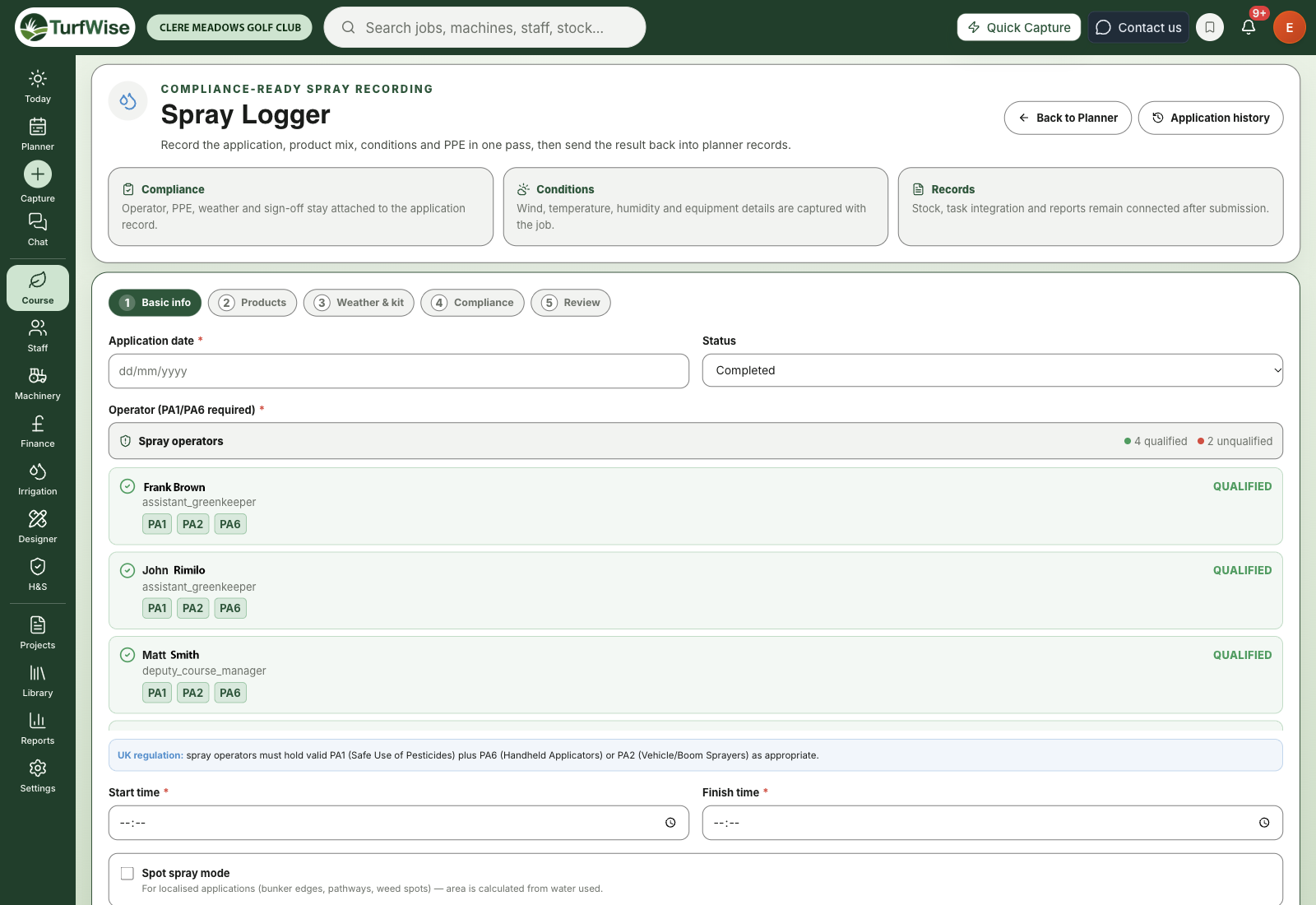
Work through the steps with Next and Back, or click a step name at the top to jump to it. Cancel takes you back to the Planner without saving.
Basic info
Enter the Application date, Start time and Finish time, and choose a Status (it starts as Completed). Times are 24-hour — just type them: 0730, 7:30 and 730 all become 07:30. Tap Now beside either time to fill in the time right now.
Pick the Operator (PA1/PA6 required) — see "What about operator qualifications?" below.
Tick the Course areas you treated. For each one, choose Whole or Part. For Part, say how much: a count ("2 of 18"), a percentage, or hectares. TurfWise then shows the Total area treated (hectares).
Write a Reason for application (at least five characters), choose a Task integration option, and add any Notes.
Products
Choose a Product from your stock list and enter the application rate per hectare. TurfWise works out the Product required and shows what will come out of stock. Click Add product to mix, and repeat for each product in the tank.
Your Tank mix list, a live nutrient summary and a tank plan (total spray mix, tanks required and coverage per tank) build up as you go.
You can also switch on Track reapplication — by Growth potential, Degree days or Days — so TurfWise can tell you when the product is due again.
Weather & kit
Set up the Tank mix calculator: nozzle colour and type, pressure, speed, nozzle count and spacing, target rate and tank size. It shows the flow per nozzle, the application rate you'll actually achieve, and the speed you'd need to hit your target.
Enter Wind speed (mph), Wind direction, Temperature (°C) and Humidity (%) — or click Fill in weather at… to have TurfWise fill them in for your start time. It uses your own weather station's reading if you have one connected (within half an hour of the start time), otherwise the hourly weather for your course. The line under the button tells you where the figures came from. Check them against what you saw, and change any that are wrong.
Tick the Sprayer used from your machinery list. Nozzle, pressure and speed are filled in from the calculator.
Compliance
Tick every item of PPE worn — Gloves, Respirator, Protective suit, Boots, Goggles. Confirm Warning signs posted. The Operator certificate fills in from the operator's records, and you can add who it was Authorised by.
Review
Check the summary cards — Basic information, Products, Weather & equipment, Compliance and Task integration — then click Submit application.
Wind over 15 mph
If you enter a wind speed over 15 mph, the Spray Logger warns you it's over the 15 mph UK limit, and the record won't submit until the wind speed is 15 mph or less. It's your record — make sure it's accurate.
What's spot spray mode?
For small jobs like bunker edges, paths or individual weeds, tick Spot spray mode in Basic info.
Instead of picking course areas, you describe the Area description and enter the Total water applied (litres). TurfWise works out the area covered from the water used and your nozzle settings.
What about operator qualifications?
The operator list checks each person's PA1, PA2 and PA6 records, which come from their skills and qualification records in Staff. Each person shows as qualified or not, with Valid, Expired or Not recorded against each certificate.
If you pick someone who isn't qualified, TurfWise asks for an Override reason of at least 10 characters. The override is saved with the record.
Keep certificates up to date
Most override prompts happen because a certificate was never entered, or has expired. Update it in the person's staff record and the prompt goes away.
What happens when I submit?
- The application is saved to your Spray & Fertiliser history.
- The products are taken out of stock. If there isn't enough stock, the save is stopped and you're told which product is short.
- If you chose Create new task, a task for the spray is added to the Planner. Add to planner only and No integration save the application without creating a task.
- You're then taken to Reports, showing the costs for that day. Reports needs Premium, so on Core you'll see the upgrade screen instead — your application is still saved.
COSHH
If a product needs a COSHH assessment and doesn't have one, the application is still recorded. Link an assessment to the product in COSHH to keep your records complete.
How do I review or correct past applications?
Go to Course › Inputs › Inputs (titled Spray & Fertiliser) and pick Records. The card at the top answers one question: could you hand these records to an inspector today? It counts how many sprays still need signing off and how many use a pesticide with no MAPP number on file.
The table shows one row per spray, grouped by month, for the period you picked (60 days, 120 days and so on). Filter by area, type, operator or what needs doing, or search by product.
Each row has a Record label:
- Ready — complete, signed off by the operator and a manager, and every pesticide has its MAPP number
- Needs sign-off — the operator or manager hasn't signed it yet
- MAPP missing — a pesticide on it has no MAPP number. Add the number to the product in Inventory and every record that uses it picks it up
- Needs review or Incomplete — the weather was outside the safe band, or part of the record is missing
- From planner — fertiliser put out through a work-planner job. It's a usage record, not a spray record, so there's nothing to sign
Click View to open a record. The panel shows a Ready for an inspector? check, every product with its MAPP number, dose and amount used, the weather, the sprayer and water volume, the operator's certificates and both sign-offs. From there you can:
- Download PDF — a one-page copy of the record to keep or hand over
- Sign Off as Manager and Sign Off as Operator
- Discuss — opens a chat thread for that application, so comments about how it worked stay with the record
- Edit — change anything on the record, including products and amounts
- Void… — for a record that shouldn't exist at all, like one logged twice
Anything in the check that needs putting right has a link straight to where you fix it: Add the MAPP number opens that product in Inventory with the MAPP field ready to fill in, Sign off now takes you to the sign-off buttons, and Correct the record opens the record for editing when a detail is missing.
Nothing is filled in for you
If something wasn't entered when the spray was logged, the record and the PDF say Not recorded. TurfWise never fills a gap with a guess.
How do I export records for an inspection?
On the Records card, click Export register. Choose:
What
Dates
Include
Download
How long to keep them
Spray records for plant protection products must be kept for at least three years. Every PDF says so in its footer.
How do I fix a mistake on a saved record?
Open the record and click Edit (or Edit record in a row's More menu). The spray form opens with everything already filled in. Change what's wrong, then on the Review step say why you're changing it (at least 10 characters) and click Save changes.
Nothing is lost
Stock follows the change
Sign it off again
Someone else got there first?
If the record was changed after you opened it, saving is refused so one edit can't silently overwrite another. Open the record again and make your change on the latest version.
When should I void instead?
Spray records are statutory documents, so they're never deleted. Use Void… for a record that shouldn't exist at all, such as one logged twice or against the wrong job. It asks for a reason (at least 10 characters), puts the stock back, and removes the record from reports and lists while keeping it for audit. Voided records can't be edited.
After voiding, TurfWise offers Log corrected entry. That opens the Spray Logger with a banner showing what you're correcting, and links the new record to the voided one.
Where's my top dressing total?
At the bottom of Spray & Fertiliser, Top dressing in this year shows the tonnes applied so far, against the same date last year, and for each area the tonnes per hectare and the depth in mm.
It counts the sand recorded in a top-dressing job's materials, so enter the amount in tonnes when you finish the job. Drag-in and brush-in jobs aren't counted.
Depth is an estimate until you set your sand's density
Depth = tonnes ÷ density ÷ area. Without your sand's figure it uses 1.5 t/m³ and shows "≈". Click the density to enter yours — it's on the supplier's data sheet, or weigh a full 10-litre bucket and divide the kg by 10. Depth also needs the area's size in Course Areas.
An entry in kg that looks like tonnes (12 kg of sand on the greens, say) is flagged so you can correct the unit on the job. TurfWise doesn't change it for you.
Common problems
- "Submit shows an error" — the message at the bottom lists what's missing. Usual suspects: no course area, a Part area with no amount, no product, missing wind/temperature/humidity, or no PPE ticked.
- "Select a treated area in step 1 before adding products" — go back to Basic info and tick your areas first.
- "Treated area could not be worked out" — one of your areas has no size. Add it on Course Areas.
- "The product I need isn't in the list" — the list comes from your stock. Add the product to stock first.