
Course Closure
Score weather and ground conditions into an open, restricted or closed decision, save it with a PDF report, and build a history you can show the committee
On this page
Course Closure turns the weather and what you're seeing on the ground into a clear Open, Restricted or Closed decision — one you can save, share and defend later.
Where do I find it?
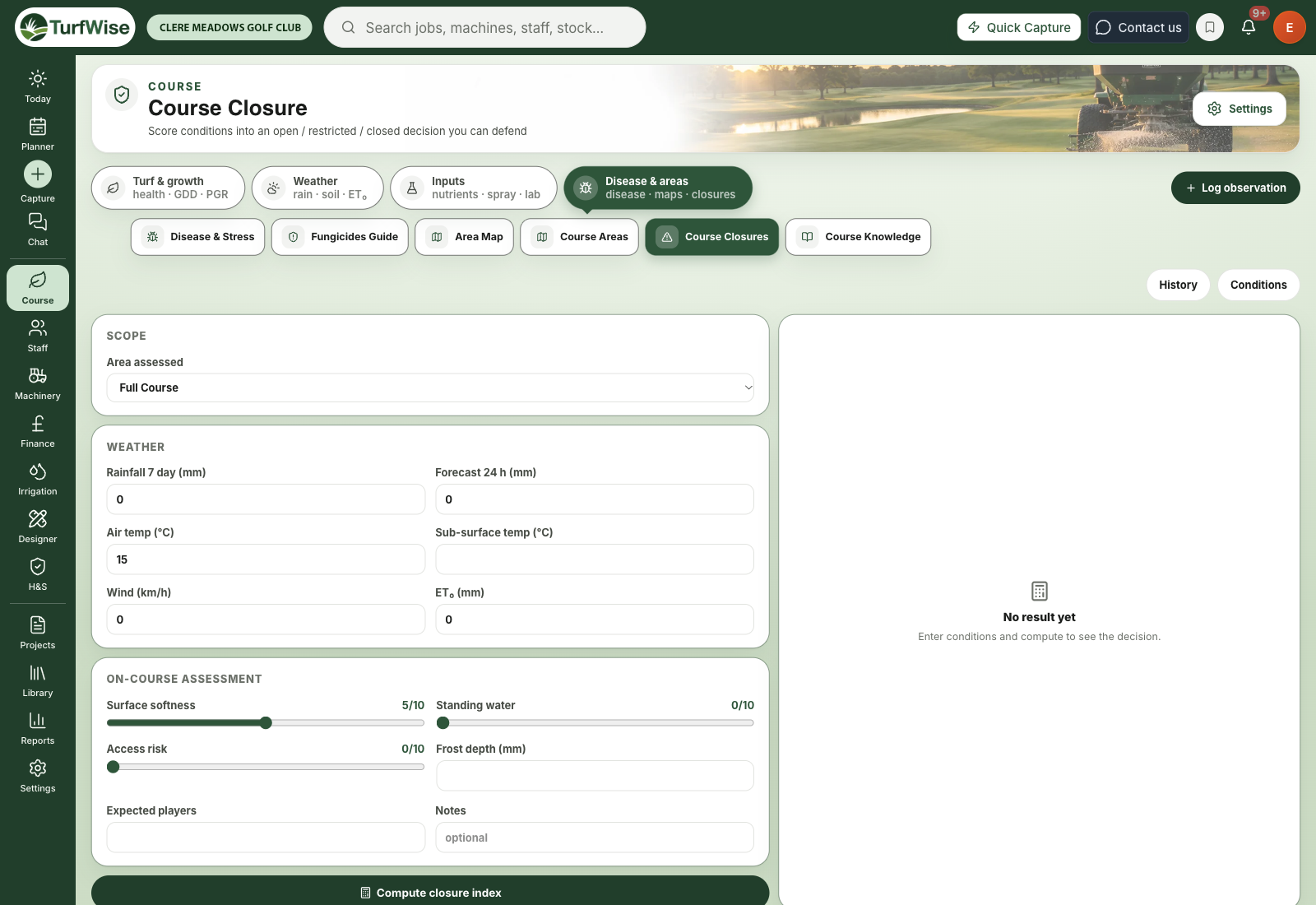
Open Course in the top bar and pick Course Closures under Disease & areas. It's included on every plan.
Under the page heading you'll see where you are — Course › Disease & areas › Course Closures — and two tabs on the right: Assess and History. The number on History is how many decisions you've saved.
You can also get there from the Planner menu: Prepare › Course Closures.
 Open full-size image ↗
When would I use it?
- First thing on a frosty or waterlogged morning, before the first tee time
- After heavy overnight rain, when you need to decide quickly
- Mid-morning, if conditions have changed and you want to reassess
- Months later, when someone asks why the course was shut on a particular day
How do I run an assessment?
Pick the area
Under Where are you assessing?, tap Full Course or one of your own playing areas — greens, tees, fairways, bunkers, practice areas and so on, straight from Course Areas (Course › Disease & areas). Compounds, gardens, woodland and water are left out.
If you've set up every hole separately, the chips group by surface (Greens, Tees…) and Or one area lets you pick a single one. No areas set up yet? You'll see a standard list until you add them.
Score what you see
Walk the course, then set Surface softness, Standing water and Access risk from 0 to 10. Each slider says what the ends mean — Firm to Very soft, for example. Add Frost in the ground, Players expected and any Notes if you have them.
Check the weather
The weather fills itself in from your records, and each figure is tagged with where it came from:
- Rain, last 7 days — your rain gauge records (Rain gauge)
- Rain, next 24 hours — the forecast (Forecast). In the morning it's today's forecast rain; from midday it's tomorrow's, and the note under the box says which day.
- Overnight low and Wind — your weather station (Station)
- Water used (ET₀), 7 days — your station if it records ET, otherwise your ET₀ record on Premium
Change any figure you know better — it's then marked You entered this and won't be refilled.
Read the decision
There's no button to press: the decision on the right updates as you change anything.
Save it
Click Save decision — you'll need a manager or admin login to save. Then click PDF report to download a copy, or Draft a notice for members for a short message you can copy and paste. Nothing is sent for you.
Save before you phone the pro shop
The decision on screen isn't kept until you click Save decision. No save, no record — and no PDF.
Why does it ask for the overnight low?
It's the one figure the score can't do without — it tells it whether there's frost. If your station hasn't sent one, type it in and the decision appears.
How do I read the decision?
The green card shows:
- Open, Restricted or Closed, with the closure index out of 100 and one sentence saying why
- A scale with a marker: 0–39 open, 40–59 borderline, 60–79 restricted, 80 and over closed
- A warning line for anything that forces a restriction on its own — standing water at 7 or more, a frost at 0 °C or below, or 40 mm of rain this week with 7 mm forecast
- Three tiles: the biggest factor, what forces a restriction, and whether you've saved today
Under it, What's driving the score shows each factor as points out of its own maximum — soil moisture is out of 30, for example, and wind out of 3. That's your answer when a member asks "why?".
What if I change something after saving?
The card says Save again. Saving again keeps both records. The PDF and the members' notice still come from the decision you saved.
ET₀ on Core
Without an ET₀ figure the score assumes no water was lost, so the ground reads a little wetter than it is. Leave it blank if you don't know it.
What happens when I save?
- The decision is stored and appears on the History tab.
- TurfWise opens a chat thread for it, visible to the whole team, named after the area and decision. See Chat.
Where do I find past decisions?
Click the History tab. The green card shows the last 30 days, one square per day, coloured by the most serious decision saved that day, with counts of restricted and closed days.
Below it, Saved decisions lists each one with its time, area, decision, closure index, 7-day rain and the main reason. Use Open, Restricted and Closed to filter, Show more for older ones, and PDF to download any report again.
Why the history matters
A year of closure records is one of the strongest cases you can make for drainage work. You can show exactly how many days were lost, and why.
How do I keep scores consistent?
The history is only useful if the same conditions get the same scores.
- Have the same person do the morning assessment where you can.
- If "a bit soft after overnight rain" was a 4 last week, make it a 4 this week too.
- Use Notes for anything unusual, like a burst pipe flooding one fairway.
- Reassess later in the day if things change — an 8am frost call might not hold at 11am.