
Weather
Read live conditions and the 7-day forecast, look back at weather history, connect a Davis weather station, and follow growth and GDD
On this page
The Weather page shows what the weather is doing on your course right now, what it's forecast to do this week, and what it actually did in the past.
It's also the engine room for the rest of Course. Spray windows, disease risk, growth potential and GDD all run off the same weather data, so it's worth getting set up properly.
Where do I find it?
Click Course in the top bar, then Weather › Weather. The Weather page is included on Core.
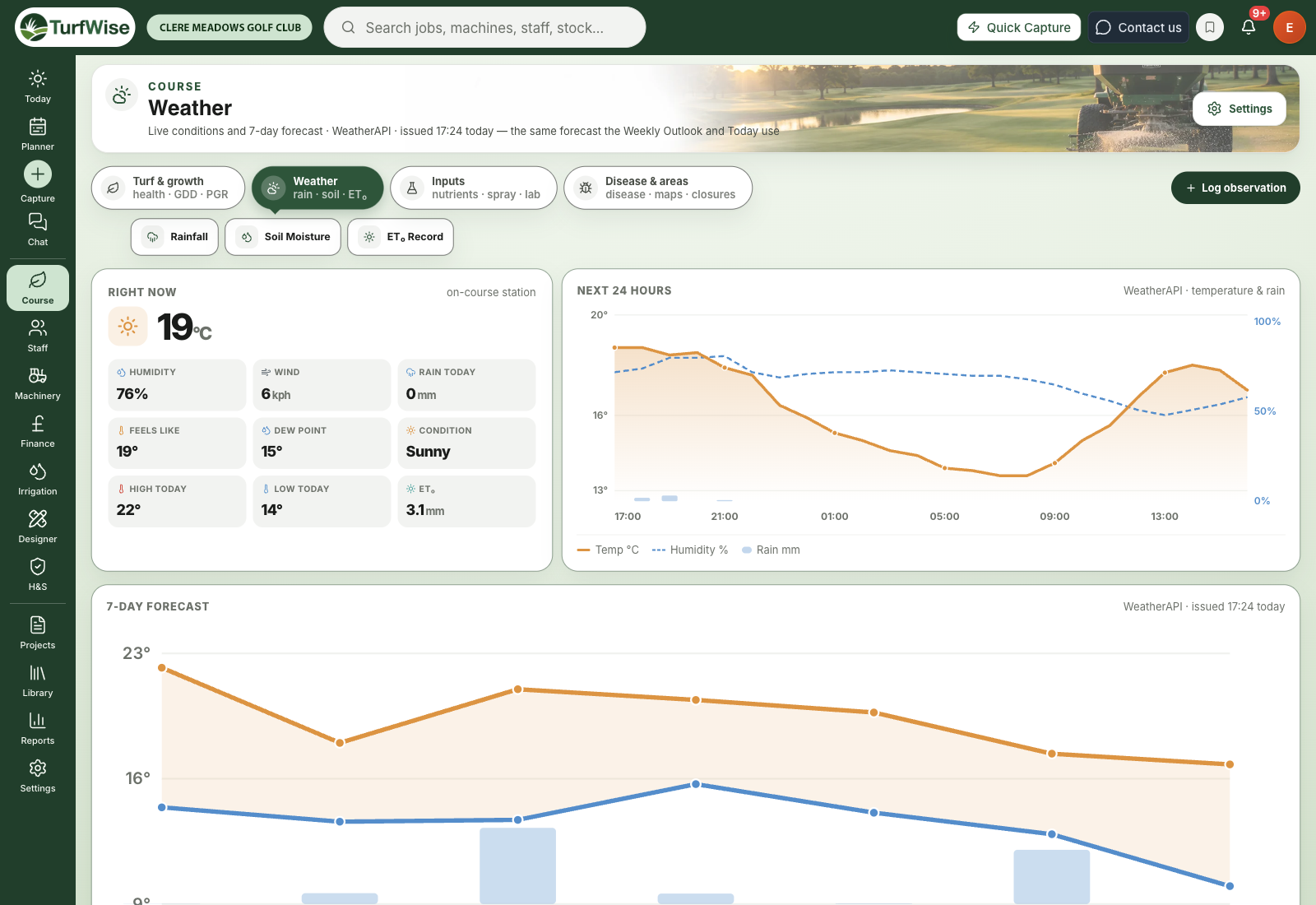 Open full-size image ↗
What's on the Weather page?
Where does the forecast come from?
Look at the line under the page title. It names the forecast source — Met Office, WeatherAPI or Weather station — and when it was issued, for example "issued 06:00 today".
It's the same forecast your Weekly Outlook and Today page use, so the numbers agree wherever you look.
Right now
The top-left panel shows the current temperature and a grid of readings: Humidity, Wind (kph), Rain, Feels like, Dew point, Condition, High today, Low today and ET₀.
The small label in the corner tells you where "right now" comes from:
- on-course station — your own Davis weather station
- WeatherAPI, live — a live reading from the weather service
- forecast model — the current hour of the forecast
Rain today vs Rain
If you have a weather station connected, the rain tile reads Rain today — your gauge's running total since midnight. Otherwise it just says Rain.
Next 24 hours
A chart of temperature (solid line), humidity (dashed line) and rain (bars) hour by hour. Hover over a point to see the exact figures. Use it to find a dry window for spraying or mowing.
7-day forecast
A chart of daily highs and lows, then one card per day with the high/low, forecast rain in mm and humidity. Hover the rain figure to see the chance of rain as well.
Weather history
Below the forecast is Weather history — what actually happened. Choose a period (30d, 90d, 180d or Last yr) to see average high, average low, total rain and average humidity, plus a temperature-range chart and a table of daily records.
- Click Sync to pull in any missing recent days.
- Click Export to download the history as a CSV — handy for committee packs and agronomist visits.
- Use the pencil and bin icons on a row to correct or remove a record. This needs a manager or admin login.
How do I set up weather for my club?
Weather settings live in Settings (under your avatar, top right) › Weather & integrations. The page is split into panels, and saving changes needs a manager or admin login.
Set your course location
In Location Settings, enter a Location Name and pick your Timezone. Then either choose Postcode Lookup and type your postcode, or enter Latitude and Longitude directly. Use Current Location fills in the coordinates if you're on site.
Check the connection
In Weather Updates, choose an Update Frequency and click Test Weather Connection. You should see Connected!.
Set your spray limits
In Application Safety Thresholds, set Maximum Wind Speed, Maximum Gust, Maximum Rainfall, the Temperature Range, and Maximum and Minimum Humidity. Applications are flagged as unsafe when conditions go past these limits.
Save
Choose your Unit System under Additional Settings, then click Save Settings.
No location, no forecast
If the Weather page says "No weather location is set for this club", nothing in Course can work out conditions for you yet. Setting the location is the first thing to do on a new club.
Can I connect my own weather station?
Yes — TurfWise connects to Davis WeatherLink stations. Your station then supplies the "right now" readings, including leaf wetness and soil moisture if your station has those sensors. Forecasts still come from your forecast provider, because a station can't forecast.
Premium
Connecting a weather station needs Premium. On Core, the Weather Station panel carries a Premium badge and a station can't be connected.
Get your WeatherLink key and secret
Sign in to your WeatherLink account and copy your v2 API key and API secret.
Enter them in TurfWise
In Settings › Weather & integrations, find the Weather Station panel. Paste them into Davis API Key and Davis API Secret, then click Connect Davis Station.
Check it's working
The panel shows Connected with your station's name and the last sync time. Click Test to see live station data. Disconnect stops all live readings from the station, so only use it if you mean to.
What are growth, GDD, the Weekly Outlook and ET₀?
They each have their own page in Course, and all of them run on the same weather history as this page. Each has its own guide.
Growth
The Growth page (Course › Turf & growth › Growth) answers one question: is the grass growing? It shows growth by day for irrigated and non-irrigated turf, the days ahead from the forecast, and growing degree days counted from the 1st of this month, the 1st of last month, 1 March or 1 January. See Growth.
Weekly Outlook
The Weekly Outlook (Course › Turf & growth › Weekly Outlook) answers "what's the week going to throw at us?" — the top disease risk, rain to come, the week's growth and the best work window, with a button to put the job on the planner. See Weekly Outlook.
ET₀ Record
The ET₀ Record (Course › Weather › ET₀ Record) shows how much water the weather is taking from your turf against the rain that gives it back, and roughly what greens and tees used. See ET₀ Record.
Premium
The Growth, Weekly Outlook and ET₀ Record pages need Premium. Today's growth potential, GDD and ET₀ figures still show on the Course hub on Core.
Common problems and fixes
- "Your weather location is set, but the forecast could not be loaded" — this is usually a short outage at the weather provider. Reload in a few minutes. If it keeps happening, check your settings.
- "A reading shows a dash" — the provider didn't send that figure. TurfWise shows a dash rather than a made-up zero.
- "The forecast doesn't match what I see out of the window" — forecasts cover a wider area than your course. A weather station gives you on-course "right now" readings.
- "Weather history has gaps" — click Sync in the Weather history panel.