
Chat
Talk to the team in threads tied to the work, see what needs you, search every message and turn a message into a job, fault, note or reminder
On this page
- How is Chat laid out?
- What kinds of thread are there?
- How do I start a conversation?
- How do I turn a message into work?
- How do I know who has read a message?
- What are unanswered questions?
- Can TurfWise pull the actions out of a thread?
- Managing a thread
- Photos, videos, voice notes and documents
- Common problems and fixes
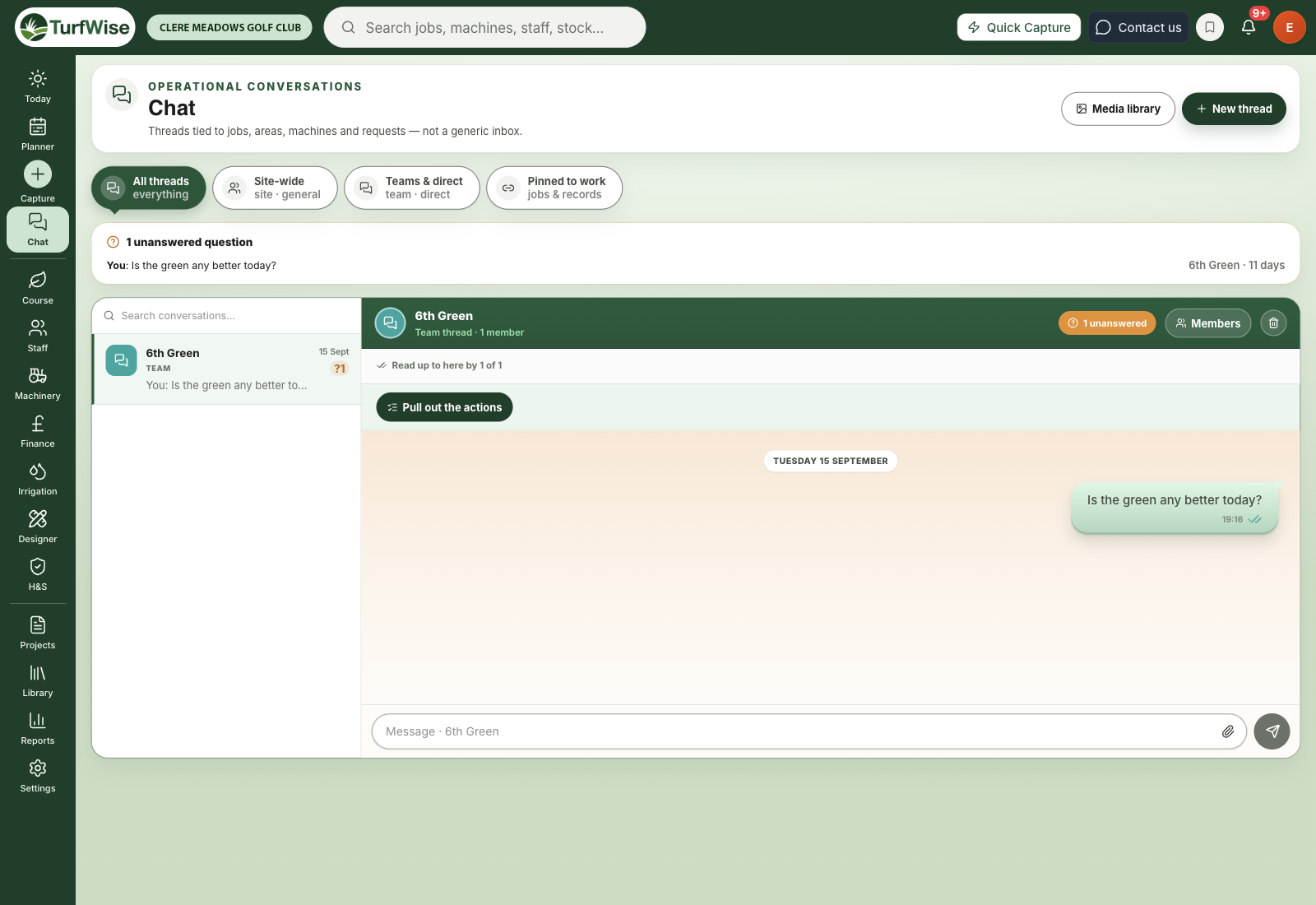
Chat is where your team talks about the work, in threads that stay with the club rather than on someone's personal phone.
Click Notes in the top bar, then Chat. The same conversations appear in the TurfWise mobile app, so the crew can reply from the course.
 Open full-size image ↗
How is Chat laid out?
At the top, the green Needs you strip shows what's waiting on you: questions nobody has answered (oldest first) and the threads with the most unread messages, three at most. Each one has a button to Open the thread, or Make a job from an unanswered question. When there's nothing, it says so.
Below it are two panes. Your threads are listed on the left, and the one you've picked opens on the right and fills the rest of the screen. On a phone you see the list first; tap a thread to open it and the back arrow to return.
Tabs above the list filter it:
- All: everything you can see
- Crew: whole-club and team threads
- Direct: one-to-one conversations
- Work: threads about a record, such as a machinery fault, a course closure, a spray record or a job
Each thread shows who can read it, for example Everyone · 9 people, 3 people or Direct. Work threads say what they're about, such as Machinery fault · open.
Older work threads fold away
A work thread folds under Show older work threads once it has been quiet for 14 days, or as soon as its record is done (the fault is fixed, or a newer closure decision has replaced it). A thread with unread messages never folds. Searching still finds folded threads.
Search every message
Type in Search every message… at the top of the list. TurfWise searches thread names and the words of every message in the threads you can read, and lists the matching messages. Click one to open its thread.
What kinds of thread are there?
- Everyone and Whole site threads are open to everyone at the club.
- Chosen people and One-to-one threads are private. Only the people added to them (and whoever started them) can read them.
Managers can see private threads, but not read them
Managers and admins see every thread in the list so they can change who's in it or delete it. If they're not a member of a private thread, they'll see This is a private thread instead of the messages.
How do I start a conversation?
Click New thread
It's in the top-right corner of the page.
Name it
Give it a clear Thread name, such as "Greens 7 · standing water".
Choose who it's for
Pick Chosen people, Whole site, Everyone or One-to-one.
Create it
Click Create. The new thread opens on the right, ready for your first message.
Type in the box at the bottom and press Enter to send. Press Shift + Enter for a new line. Click the paperclip to send a file: a photo, a video (MP4 or MOV), a voice note (MP3, M4A or WAV), or a PDF, Word, Excel or CSV file, up to 50 MB. Large files show how far they've got while they upload.
Mentioning someone
Type @ and start their name, then pick them from the list (or press Enter). Their name is highlighted in the message.
The person you mention gets an alert that says "Paul mentioned you · Team chat", flagged so it stands out from ordinary chat alerts. You can only mention people who can read the thread. Mentions typed on the phone work too: a full name, or just a first name if nobody else in the thread shares it.
Threads that start themselves
- A machine fault gets its own thread when it's reported.
- A course closure assessment gets one too.
- A spray application gets a thread only when someone clicks Discuss on the spray record.
You'll find these under Work. The bar at the top of the thread links back to the record.
How do I turn a message into work?
Click the ⋯ button next to a message (on a computer it appears when you point at the message). Pick one of:
- Make a job: the job's title comes from the message. TurfWise suggests the course area if a hole is mentioned. Choose who (or leave it as Nobody yet and it goes into holding), which day and how long it takes.
- Raise a fault: pick the machine and how serious it is, and say what's wrong.
- Save as a note: saves it to Notes for the team.
- Remind me: saves a reminder with a due date.
Leave Tell the thread ticked and TurfWise posts a line under the message, such as Job made · Bring line paint to the 6th · Jake · 8 Oct. Click it to open the record. If the message was an unanswered question, this also takes it off the list.
If the thread isn't told
If the record is saved but the line can't be posted, you'll be told. The record is still saved, so there's no need to make it again.
How do I know who has read a message?
The thread header shows Seen by 4 of 9 (or similar) for the newest message. Click it to see who hasn't caught up yet, listed under Not yet read by.
What 'read' means here
This shows how far each person has read the thread. It isn't proof they read that one message on its own.
In the thread itself, a double tick on your latest message means everyone in the thread has read it. Your other messages show a single tick once they've been sent.
What are unanswered questions?
TurfWise keeps an eye out for questions that nobody has answered. A message counts as a question if it has a question mark and a few words around it, or if it's a clear ask such as "can you…" or "let me know…".
- A question is flagged once it's been waiting 24 hours, and is checked for up to 30 days.
- Any reply from someone else in the thread closes it, and so does turning it into a job, fault, note or reminder. Your own follow-ups don't.
Unanswered questions show in the Needs you strip, under the message itself (No reply for 2 days · Make a job), and on your Today page under Needs you › Raised by someone.
Can TurfWise pull the actions out of a thread?
Yes. At the top of an open thread, click Pull out the actions. TurfWise reads the recent messages and lists the commitments, issues and decisions it finds, with who's responsible and any date mentioned. It isn't offered in one-to-one threads.
Each item is labelled AI or rule, so you can see whether it was found by the AI or by simple pattern matching. Anything the AI suggests that doesn't match what was actually said is thrown away.
Nothing is added to the plan automatically
These are only suggestions. Nothing is added to anyone's plan until someone acts on it.
Managing a thread
If you're a manager or admin, the ⋯ button in the thread header gives you:
- Members: add or remove people from the thread.
- Rename: change the thread's name.
- Delete thread: it disappears from everyone's list, but the history is kept on the record and can be restored.
Photos, videos, voice notes and documents
Photos show in the message. Videos and voice notes play inside the message, and documents have an Open document button: a PDF opens in the browser, and Word, Excel and CSV files download.
To see everything in one place, click Photos & files at the top of the page. It gathers the photos, videos, voice notes and documents from every thread you can read. Filter by type or search captions, comments and tags. Click Back to threads to return.
Messages imported from a WhatsApp group show the sender's name tidied up, for example "Matt (work)" shows as "Matt".
Common problems and fixes
- I can't type in a thread. Your role can read Chat but not post. Ask a manager to check your permissions.
- A thread I expected isn't in my list. Private threads only show for their members. Ask whoever started it to add you. Older work threads may be folded under Show older work threads.
- "Couldn't load your conversations." Click Retry.