
Your Today Page
What each part of the Today page shows, from the day dial and Ask TurfWise to Needs you, conditions, your members' page, messages, kit and your scribble pad
On this page
Today is your morning briefing: one page that shows what's waiting on you, what the course is doing, who's working and what the team is saying.
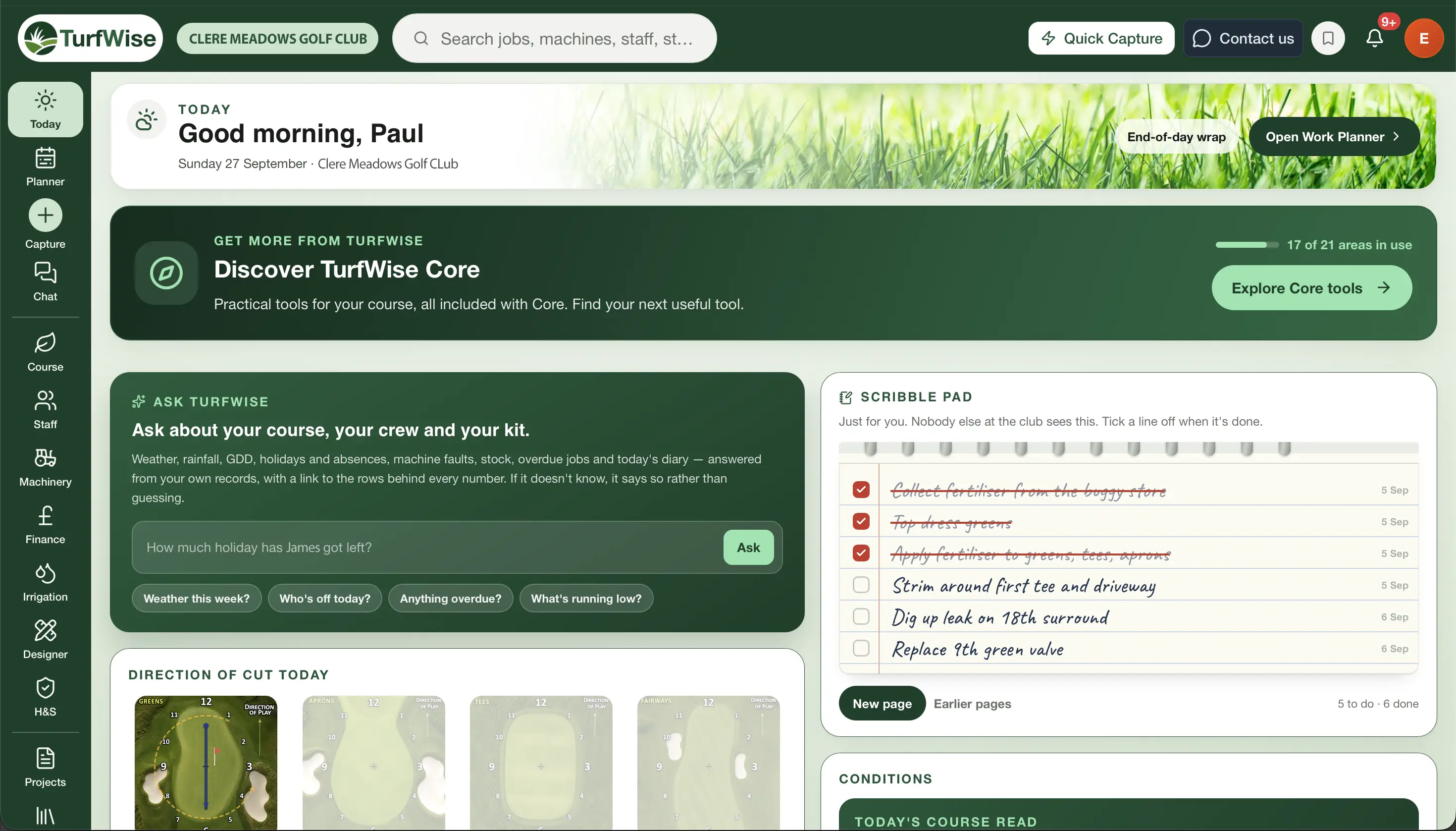
It's the first place in the top bar, a single page with no menu, and it's usually where you land when you sign in. Most of the page reads from other parts of TurfWise, but a few cards let you do quick jobs right here, like rating the greens or ticking off a line on your scribble pad.
 Open full-size image ↗
How is the page laid out?
From the top down:
- The dark banner greets you by name, with today's date, your course and how many of the crew are clocked in. It gives the day's answer, status chips for the jobs, and a 24-hour dial showing each person's work around the clock, with sunrise, sunset, the spray window and a hand for the time now.
- Ask TurfWise sits straight under the banner.
- Late, and what's next shows the job to sort first and what starts next. It only appears once the day has jobs.
- Who's doing what shows each person's work along the day, with Today's work inside it. Needs you sits beside it.
- The course and the team is a two-column spread: Conditions, Course board and Scribble pad on one side; Messages, Direction of cut, your Members' page and Course work on the other.
- Weekly Outlook, Measuring this week and Kit & stock run along the bottom.
Two other cards come and go. Getting started and the phone-app card appear until you've got the basics done and your staff are on the app. The Discover TurfWise Core card, near the foot, shows how many of the tools included with Core your club is already using.
Buttons in the banner change with the time of day. Open Work Planner takes you straight to the Planner, End-of-day wrap opens a full list of today's jobs with who they're assigned to, their priority and their status, and Report disease opens the disease check on the Conditions card.
What does the banner's answer say?
The banner reads the clock and answers the day's question in a line or two. Before the first shift it tells you whether today is sorted: crew in, jobs planned, the spray window and anything that needs a decision. During the day it says how it's going. After the last job it says what was recorded, what's still open and whether tomorrow is planned.
The buttons beside it take you to the right page, such as Open today's plan, Open live board, See what slipped, Check today's jobs or Plan tomorrow. Jobs finish by themselves at the end of their time, so there's nothing to close.
Every number comes from the same rule the Work Planner uses, so the two never disagree.
Can't read the plan
If the banner says this, the Work Planner board couldn't be read for your login. Open the planner to check the day.
Ask TurfWise
The dark Ask TurfWise card sits straight under the banner. Type a plain-English question, such as "Who's off today?" or "What's running low?", and press Enter. Tap one of the example questions underneath to put it in the box, change the name or the wording, then send it. Stop stops waiting for an answer that's taking too long.
Answers come from your own records, with a link to the rows behind every number. If TurfWise doesn't know, it says so rather than guessing.
You can also ask from anywhere: the Ask TurfWise box in the top bar opens with Ctrl + K (⌘ + K on a Mac). You'll find the full guide in Ask TurfWise.
Direction of cut and rating the greens
Direction of cut today
This card shows today's mowing direction for Green, Approach, Tee and Fairway as small surface diagrams. Hover over a tile to see the clock direction, any perimeter cut and any double cut. If nothing has been set for a surface today, the tile says so.
Click See more to open the Direction of Cut page, where the weekly pattern is set for each surface. See Direction of Cut.
Premium
Anyone can see the direction of cut. Setting or changing the weekly pattern is part of advanced work planning, which is included with Premium.
Course board and rating the greens
The Course board shows what members see on your Members' page, course by course, with each course's status and when it was last updated (or Not updated today). Underneath, Cut direction shows today's cut and links to the Direction of Cut page.
On the Greens line, click Rate your greens to give the greens one gut-feel score out of ten. Only the overall score is needed; a breakdown (things like speed, smoothness and firmness) is optional. It takes a few seconds, and over time those scores tell you whether a spray or treatment actually made a difference. The scores build the Green Quality record.
See what worked opens the page that looks back at what was applied and how the course responded. That page is part of agronomy science and trends, which is included with Premium.
What goes in "Needs you"?
Needs you is your to-do queue for the day. It has two groups: Decide first, then Good to know.
Decide
Things a person flagged that nobody has dealt with yet, then anything the system flagged that needs a call:
- Captures that haven't been marked as dealt with, logged from the Capture page or the mobile app.
- Unanswered questions from chat that have had no reply.
Each row shows how long it has been waiting. The badge at the top counts everything waiting, and turns red when something has been sitting there for a week or more. Work-type captures (issues, actions and maintenance) are listed first, then everything else, oldest first.
For a capture, click Done to take it off the list. A question is cleared by replying to it, so clicking the row opens that chat thread instead. If there are more than four items, a link at the bottom takes you to the Capture page.
Good to know
Rules that have fired rather than people waiting — alerts raised elsewhere in TurfWise, with the part of the app they came from, and data warnings like "Growth potential unavailable". A Weather Reminder whose conditions the forecast has met shows here too.
Weather rows (rain risk, spray window) live in Conditions, and "no plan set" is the answer card's Plan action, so neither is repeated here.
Each row has a button to open the right page. The ✕ hides a row for now, but it comes back next time you load Today if the problem is still there.
Clear the queue every morning
A capture that sits in Needs you for weeks is a job nobody is doing. Deal with it, turn it into a job in the Planner, or mark it Done so the list stays honest.
Today's work
Today's work sits inside Who's doing what: jobs, assigned, clocked in and carried over, with the open jobs listed underneath and the day's one plan action. Upcoming events are in the Calendar.
What does the Conditions card tell me?
The Conditions card gives you a quick read of the course.
- Today's course read is a headline about growth conditions, with a one-line summary.
- Up to three decision rows: Spray window, Surface drying and Disease pressure (the highest of Fusarium, Dollar spot and Anthracnose risk today).
The air, humidity, soil temperature, ET₀ and water-deficit tiles live on the Conditions Dashboard now.
Disease on course today?
At the bottom of the card is a quick daily check:
Walk the course
Have a look for disease on your morning walk.
All clear?
Click All clear. TurfWise logs it and adds a day to your clear streak.
Found something?
Click Report present, tick the disease (Fusarium Patch, Dollar Spot, Anthracnose, Take-all Patch or Red Thread), then pick Light, Moderate or Severe. Choosing the areas where you saw it is optional.
Save
Click Save observation.
Open Conditions Dashboard at the foot of the card takes you to the Course workspace. See Disease Prediction and Weather for more detail.
Update your members' page
The dark green Update your members' page card keeps your Members' page current without leaving Today. Each course shows its status and when it was last updated, or Not updated today.
- Still the same posts that course's last update again, unchanged. It's the quickest way to keep the page fresh on a morning when nothing has changed.
- Update conditions opens the conditions form on the Members' page.
- New post opens the post form, for photos, video or news.
- Open page shows the page as members see it.
Managers see all of these. Staff see the statuses and Suggest a post, which a manager approves before it goes on the page. People without access to the Members' page don't see the card.
Weekly Outlook
This card sums up the week ahead: a headline (such as Settled or Changeable), the top disease risks, growth potential, the latest soil moisture reading and forecast rain, plus one "do this today" line. Open this week's outlook opens the full page.
Premium
The Weekly Outlook is part of daily course intelligence, which is included with Premium. On Core, the card shows a lock and a link to see what Premium includes.
Scribble pad and Messages
Scribble pad
A private notepad just for you. Nobody else at the club can see it. Type a line, tick it off when it's done, and it gets a red line through it. It saves itself as you type.
Your pad is the same one you see in the TurfWise mobile app, so a note you jot on the course is waiting for you at your desk. There's more in Notes and to-dos.
Messages
A window onto Chat. It shows your three most recent threads, each with its latest message in a green bubble and an unread count. Click a thread to open it, or click Message the team… to go to Chat and write a message.
Kit & stock
Machines that are down (and when they're expected back), services due this week and products below their reorder level. It only appears when you can see Machinery or Stock, and says Kit and stock are in order when there's nothing to do.
Common problems and fixes
- "Couldn't load Today" with a Retry button. Check your connection and click Retry.
- The Conditions rows are missing. If weather data isn't coming through, the Conditions card says so. Open the Weather page to check the feed.
- Today's work says "Nothing planned today". Plan the day in the Planner and it fills up.
- A capture I've already dealt with is still in Needs you. Click Done on the row to clear it.