
Notes and To-dos
Keep course notes, photos, map pins, actions and reminders in Notes & Reminders, and your own private to-do list on the Today scribble pad
On this page
TurfWise gives you two places to jot things down: Notes & Reminders, a shared course notebook with photos, map pins and follow-ups, and the Scribble pad on Today, a private to-do list that's just for you.
Where do I find Notes & Reminders?
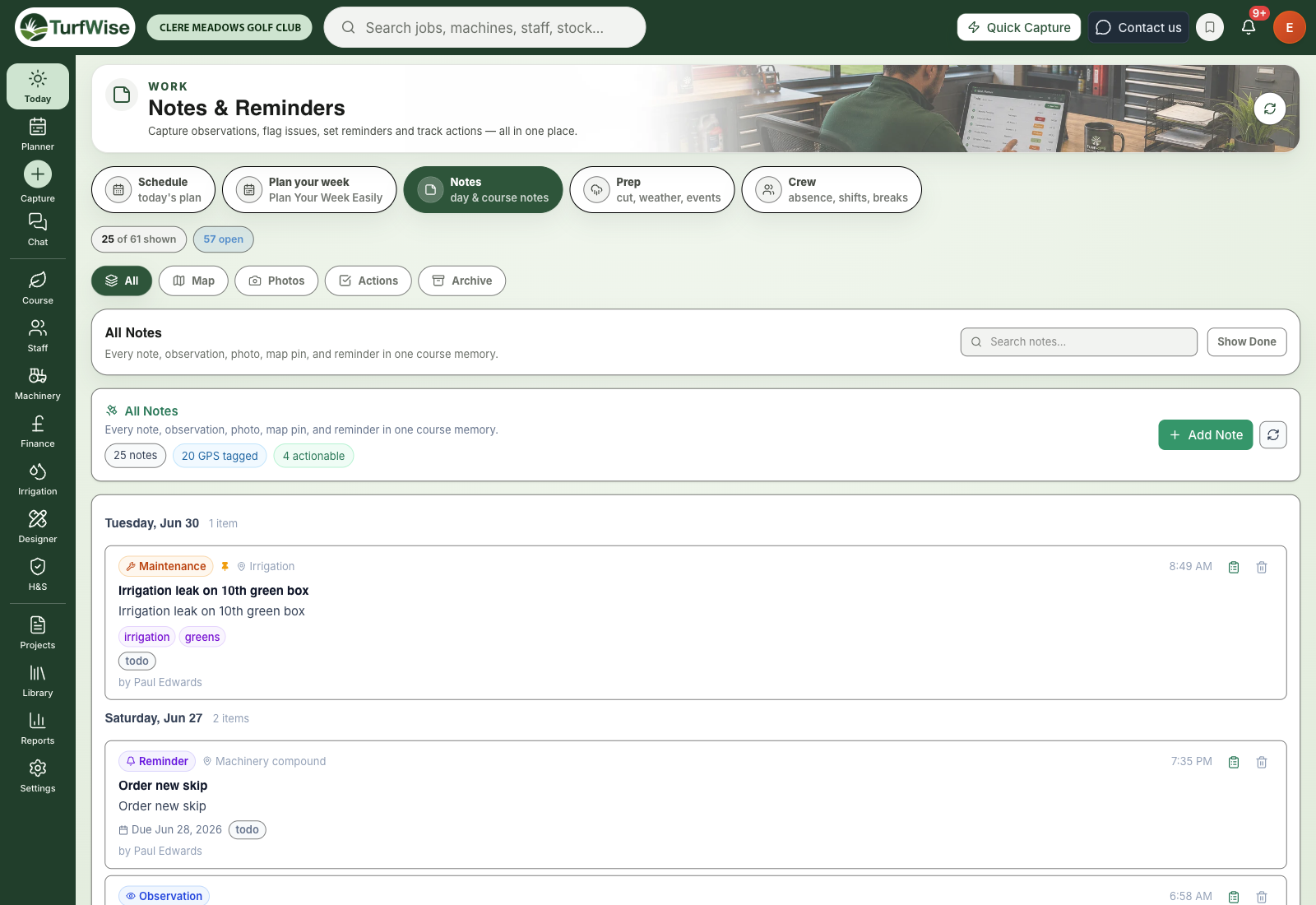
Click Notes in the top bar, then Notes, which sits straight after Work. You can also get there from the Your notes button on the Capture page.
 Open full-size image ↗
The green card at the top answers one question: what's still open on the course? It counts every open note, how many are past their date, how many have photos and how many have no place yet.
The counts cover every note
The figures on the card and on the view buttons count all your open notes, not just the ones on screen. Nothing is hidden because the list is long.
How do I add a note?
Click New note
It's the mint button on the green card. The Add Note panel opens.
Choose what you're capturing
Under What are you capturing?, pick Note, Observation, Flag, Action, Maintenance or Reminder.
Write it down
Add a Title and the Details. Choose a Course area if you can, so the note shows on that area's history.
Add a position and photos (optional)
Capture your GPS position if you're out on the course, and attach up to five course photos.
Save it
Actions and reminders also ask for a Target date and a Priority. Then click Save Capture.
What are the four views for?
- Feed: every note, newest first, grouped by week and month. Older months fold into one line each, showing how many notes, photos and late items they hold. Click a month to open it.
- Photos: every photo on your notes, by the month it was taken. Click one to see it large, then Make a job, Add a place or Open the note. Use Jump to to go straight to a month.
- Map: notes with a GPS pin on the course map. Click the map to drop a new note at that spot. Beside it, No place lists the notes with no area, pin or location.
- To do: actions, maintenance, reminders and flags in three lanes — Past their date, Flags — check first and Still to do, grouped by the kind of work.
Use the search box and filters to narrow any view: the kind of note, an area, a date range, or Has a photo. Done and archived notes are hidden until you switch on Show done & archived.
What's a walk?
When you make three or more notes within half an hour of each other, the Feed shows them together as a walk, so a drainage survey reads as one survey. Click any line in the walk to open that note.
What does "Looks like the same thing" mean?
Two notes from the same person on the same day with nearly the same words are shown side by side. Click Merge into one to keep the older note, add the other's photos and words to it, and remove the copy.
Working with a note
Click a note to open it in a panel on the right. You can change any detail there: the words, the kind, priority, due date, who it's given to and who can see it.
- Make it a job turns the note into a backlog job, ready to plan into a week on the Week Ahead Planner.
- Mark done closes it. Can't do yet… asks why it's stuck.
- Add photo puts another photo on the note.
Give it a place in one tap
If a note has no place, TurfWise reads its words and suggests an area — "8th green" suggests Green 8, for example. Click Yes to accept, or choose another area. On the Map view, Accept all suggestions does the whole list at once.
How do pins work?
Pin a note from its panel to keep it at the top. Pinned notes sit in a strip at the top of the Feed instead of filling the list, so they never push newer notes or photos out of sight.
If pins pile up, click Tidy the pins on the green card. It shows your pins one at a time: Keep pinned, Unpin, Make a job or It's done. The keys K, U, J and D do the same.
Keep pins for what matters
There's no limit on pins, but a handful works best — when everything is pinned, nothing stands out.
What is the Scribble pad?
The Scribble pad sits at the top of the right-hand column on your Today page. It looks like a ruled notepad, and it's private: nobody else at the club can see it.
- Click a line and type. Press Enter for a new line.
- Tick a line off when it's done, and it gets a red line through it.
- It saves itself as you type. The corner shows Saving… and then Saved with the time.
Ticking a line only crosses it out. It doesn't assign anything or tell anyone. If a job needs an owner and a date, put it in the Planner instead.
Starting a fresh page
When the page gets full, click New page. Your current sheet is filed away and you start with a clean one. Click Earlier pages to look back through filed pages, with the date each was filed.
The same pad on your phone
The Scribble pad is also in the TurfWise mobile app. Jot a line while you're walking the course and it's waiting for you at your desk.
Which one should I use?
- A private reminder for yourself, like "ring the supplier about sand": the Scribble pad.
- Something the team should see, like a note with a photo of a problem area: Notes & Reminders.
- A quick thing to flag and clear today: Capture.
- A job with a person and a time: the Planner.
- A longer record of what you saw and did: the Journal.
Common problems and fixes
- "Not saved" on the Scribble pad. Click Retry next to it. Your lines stay on screen until they save.
- "Couldn't start a new page". Nothing was filed and your notes are untouched. Try again.
- A note I completed has vanished. Click Show Done to see completed notes.
- The Map tab says "Map not configured". The map can't load at the moment. Notes with a location are still listed on the All tab.