
Capture
Log a note, observation, issue, flag, action or maintenance need in seconds, and see where your captures end up
On this page
Capture is the quickest way to get something out of your head and into TurfWise: a standing-water patch, a job that needs doing, a reading, a thing to check later.
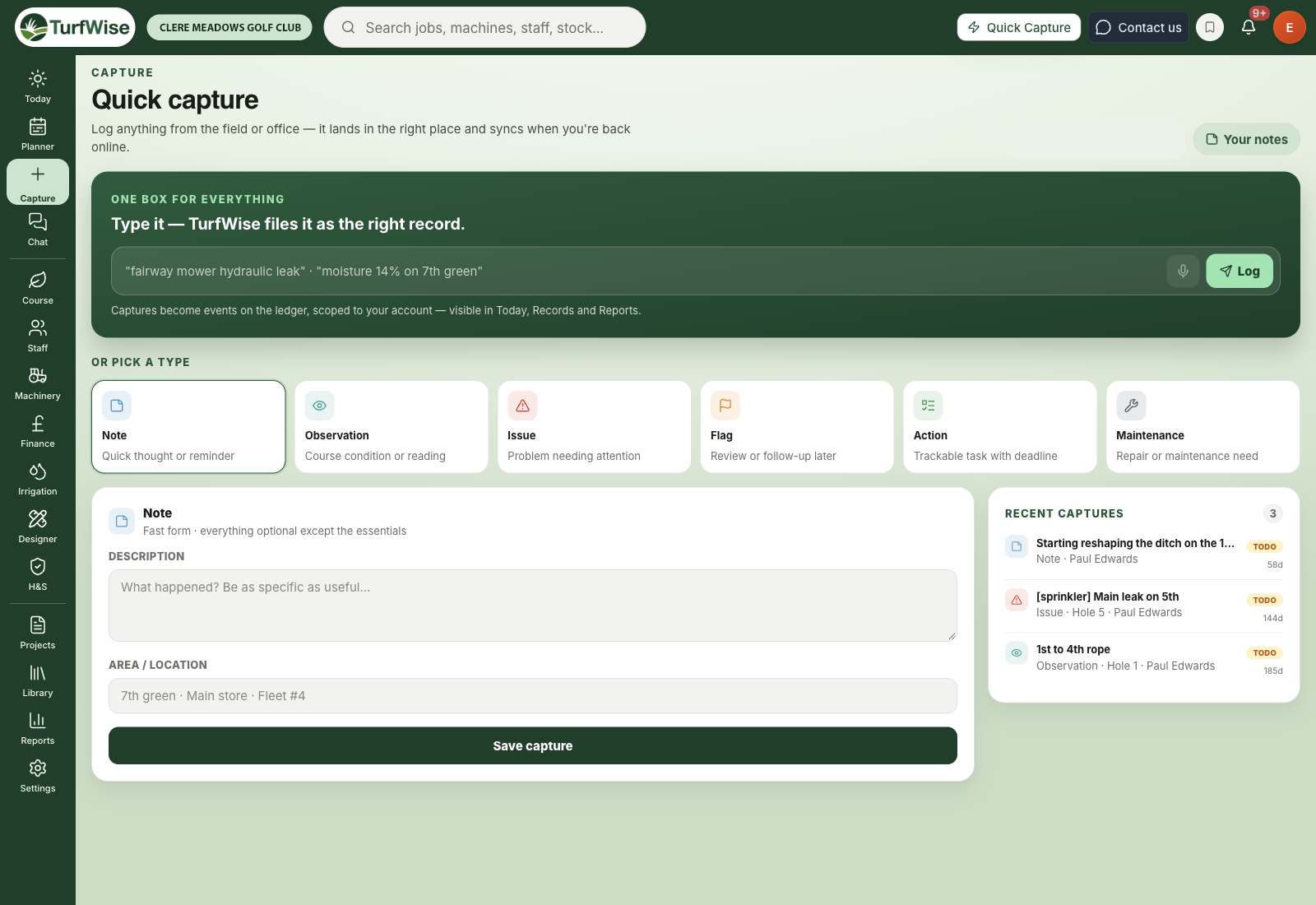
Click the lime Capture button in the top bar, which is there on every page, to open the Quick capture page. You can also reach it from Notes › Capture. Then choose what you're capturing — Note, Observation, Flag, Action, Maintenance or Issue.
 Open full-size image ↗
What can I capture?
There are six types of capture:
- Note: a quick thought or reminder
- Observation: a course condition or a reading
- Issue: a problem that needs attention
- Flag: something to review or follow up later
- Action: a task you want to track
- Maintenance: a repair or maintenance need
Faults, sprays and stock have their own homes
A capture is a quick record, not a machine fault, a spray record or a stock movement. For those, use Machinery faults, the Spray Logger or Stock, so they land in the right records.
How do I capture something in one line?
The green box at the top says One box for everything. Type what you want to record and press Enter or click Log.
TurfWise picks the type from the words you use:
- Words like "leak", "fault", "broken" or "not working" make it an Issue
- "Service", "repair" or "maintenance" make it Maintenance
- "Moisture", "green speed", "reading" or a percentage make it an Observation
- "Need to", "tomorrow", "todo" or "action" make it an Action
- "Follow up", "check later" or "review" make it a Flag
- Anything else is saved as a Note
For example, fairway mower hydraulic leak is saved as an Issue, and moisture 14% on 7th green as an Observation.
How do I use the full form?
If you want to choose the type yourself or add a location, use the form under Or pick a type.
Pick a type
Click one of the six tiles. The form below changes to suit it.
Describe it
Fill in the Description (or Observation). For an Action, you can also give it a Title and a Priority of Low, Medium or High.
Say where
Add an Area / location if it helps, for example "7th green" or "Main store".
Save
Click Save capture.
Where do my captures go?
Your latest captures appear under Recent captures on the right, with their type, location, who logged it, status and how long ago it was.
Captures that nobody has dealt with also show on your Today page, under Needs you › Raised by someone, with how long each one has been waiting. That's where you clear them: click Done once it's handled.
Captures logged in the TurfWise mobile app land in the same place, so something a greenkeeper spots on the course shows up on your Today page.
Captures or notes?
Captures are for quick, one-off records that you'll deal with and clear. For notes you want to keep, pin to the map, add photos to or organise into a to-do board, click Your notes at the top of the page to open Notes & Reminders.
Common problems and fixes
- "Type or say what to capture". The one-line box was empty. Type something before clicking Log.
- "Add a quick description". The form needs a description before it can save.
- It picked the wrong type. Use the tiles and the form instead of the one-line box, so you choose the type yourself.