
The Course Hub
Find your way around Course — live turf conditions, spray windows, disease risk and every agronomy page, grouped into four sections
On this page
Course is where TurfWise answers one question: how healthy are my surfaces, and what does the data say to do today?
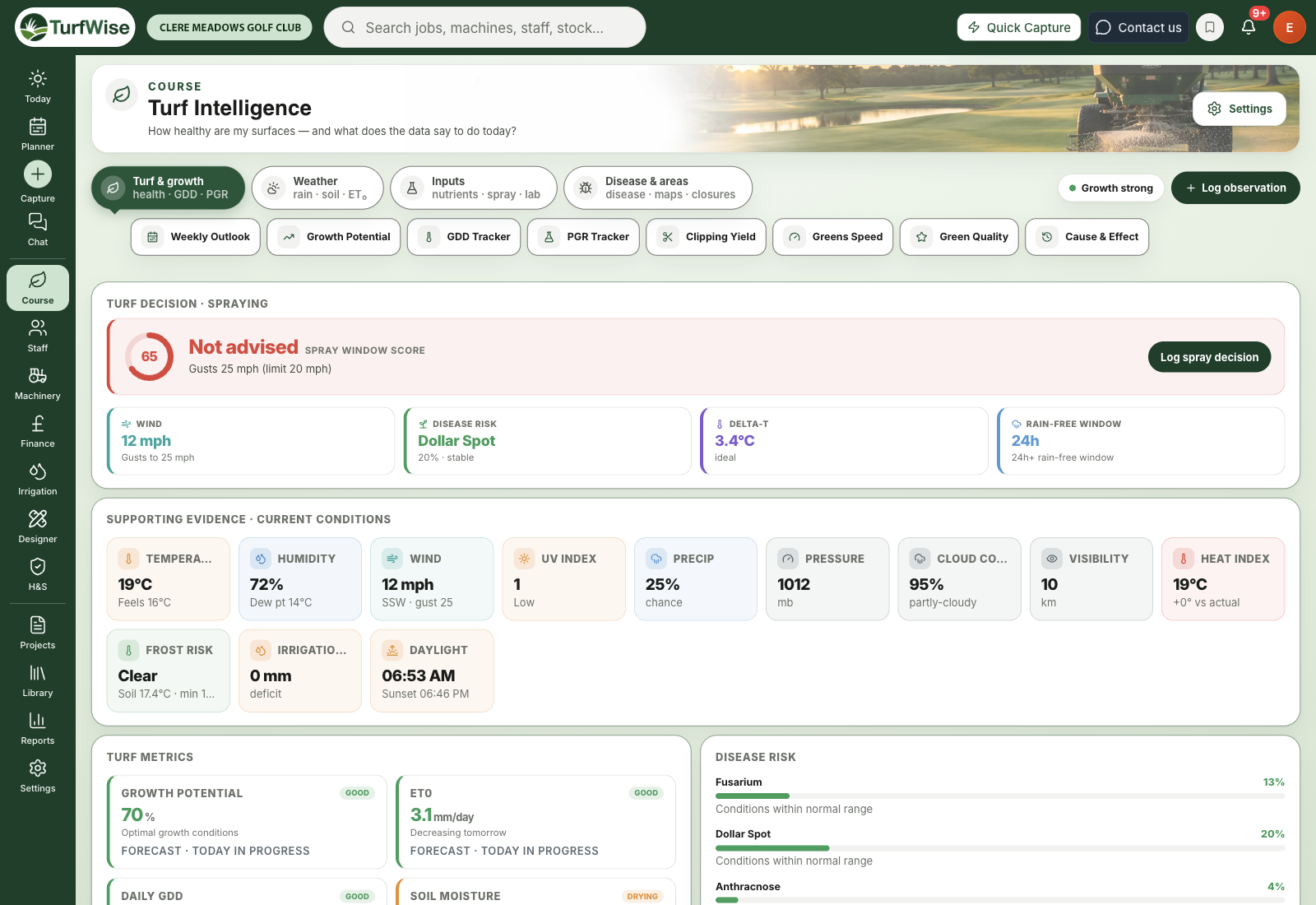
Click Course in the top bar and choose Turf & growth to open it. You'll land on Turf Intelligence — a live read of weather, turf and disease, with a spray-window verdict at the top.
 Open full-size image ↗
How is Course organised?
The Course menu groups its pages into four sections, and every Course page carries the same row of tabs under its header so you can move between them without going back to the menu. Each page has its own guide.
Turf & growth
This is where you land. Turf & growth opens the Turf Intelligence dashboard, and alongside it are:
- Weekly Outlook — the week ahead for your course: risks, windows and what to do
- Growth — is the grass growing? Growth by day and growing degree days on one page
- PGR Tracker — when each tracked spray is due again. Growth regulators are timed on degree days (heat), and feeds, hardeners and fungicides on growth potential (how hard the grass is growing). A tank mix with a growth regulator in it goes in the degree-days section.
- Clipping Yield — clipping volumes as a growth signal
- Greens Speed — Stimpmeter readings against your target
- Green Quality — how your greens have actually been scoring
- Treatment vs Response — did what you sprayed change the greens, or was it just the season? Each spray is judged as the whole tank, against what a normal week does at that time of year.
Weather
Weather opens the weather page. Alongside it are Rainfall, Soil Moisture and ET₀ Record (daily water demand).
Soil Moisture lives in Irrigation
The Soil Moisture link takes you across to the Irrigation module's moisture page. See Soil moisture for how that works.
Inputs
Inputs opens Spray & Fertiliser, your application history (see Spray Logger for recording a spray). Alongside it are Nutrients Report, Lab Testing and Agronomy Reports.
Disease & areas
Disease & areas opens Course Areas. Alongside it are Disease & Stress, Fungicides Guide, Area Map, Course Closures and Course Knowledge.
The Log observation button
Most Course pages carry a dark Log observation button in the header. It opens the observation form in place so you can record what you've seen on the course without leaving the page. The Disease & Stress page itself is Premium; logging an observation is not.
What's on the Turf Intelligence dashboard?
The dashboard reads top to bottom, from "what should I do" down to the evidence behind it.
Turf decision · spraying
The big verdict at the top is today's spray window score, shown in a ring out of 100. The label beside it is one of:
- Optimal — conditions line up for spraying
- Possible with caution — workable, but check the details
- Marginal — poor conditions
- Not advised — at least one hard limit is breached
- No spray reading — TurfWise didn't have enough data to judge
Under the verdict you'll see four cards: Wind, Disease risk (the highest-risk disease right now), Delta-T and Rain-free window.
Supporting evidence · current conditions
A grid of today's readings: temperature, humidity and dew point, wind, UV, rain chance, pressure, cloud cover, visibility, heat index, frost risk, irrigation deficit and sunrise/sunset.
Turf metrics and Disease risk
Turf metrics shows Growth Potential, ET₀, Daily GDD and Soil Moisture, each with a status label. Where a figure is modelled rather than measured by a sensor, a small grey source label under it says so.
Disease risk shows a percentage and a trend arrow for Fusarium, Dollar Spot and Anthracnose. See Disease prediction for what drives them.
AI recommendations
When there's something worth flagging, short recommendation cards appear here with a timeframe. If there's nothing to say, this section doesn't show.
Spray window outlook
An hour-by-hour strip for the next few days. Green is excellent, amber is marginal and grey is unsuitable. The percentage at the end of each row is how much of that day is excellent.
Charts
At the bottom you'll find temperature and humidity for the coming hours, a 5-day temperature and rainfall outlook, a 7-day disease forecast, soil temperature at 10cm and leaf wetness.
Grey means 'no data', not 'fine'
If a reading isn't available — for example your weather source didn't send humidity — the tile shows a dash or a grey "No data" label. TurfWise leaves it blank rather than guessing a number.
Which Course pages need Premium?
The hub itself, Weather, Rainfall, Spray & Fertiliser, the Spray Logger, Course Areas, Area Map, Course Closures, Course Knowledge, the Fungicides Guide, Clipping Yield, Greens Speed and Green Quality are all included on Core.
Premium
These Course pages need Premium: Weekly Outlook, Growth, PGR Tracker, ET₀ Record, Treatment vs Response, Nutrients Report, Lab Testing, Agronomy Reports and Disease & Stress. On Core they stay visible in the menu and the tab row with a lock badge.
The Disease & areas section opens on Course Areas, which is on Core, so a Core club lands on a page it can use. The Core pages in that section — Course Areas, Area Map, Course Closures, Course Knowledge and the Fungicides Guide — are all yours; only Disease & Stress carries the lock. See Course areas for the way in.
What if the dashboard says it can't load?
If Turf Intelligence shows a red box, read the message:
- A location or setup message means your club's weather location isn't set. Open Settings (under your avatar, top right) › Weather & integrations and set your course location, then press Retry.
- "The weather/agronomy feed didn't respond" is a data-source hiccup, not a problem with your setup. Try Retry in a moment.
Set your weather location first
Almost everything in Course runs off your weather location. If you're setting up a new club, do that before anything else — see Weather.