
Staff Directory and Profiles
Find your way around the Staff module, keep your team's records up to date, and use each person's profile
On this page
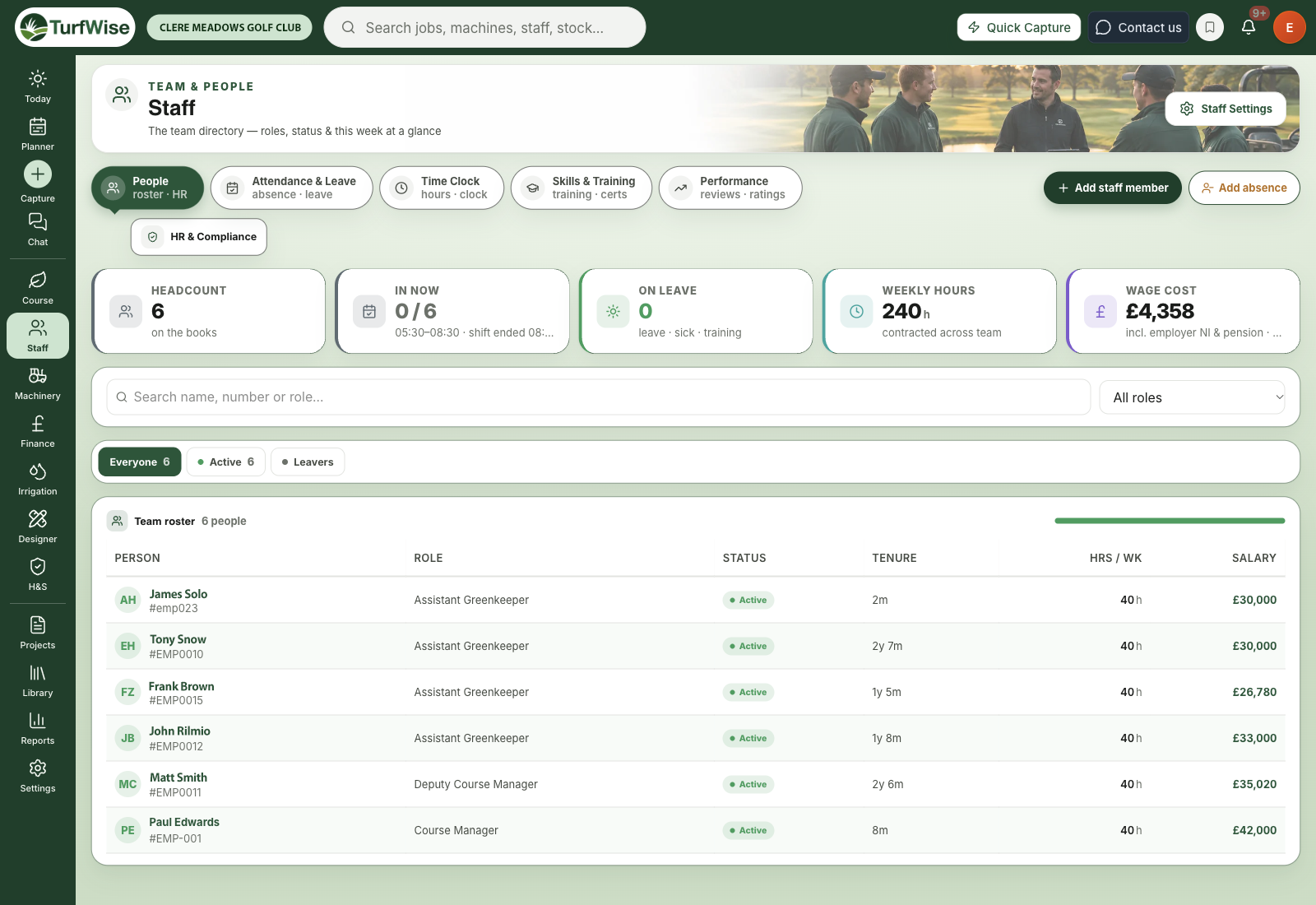
The Staff module is where your team lives in TurfWise — a directory of everyone on the books, with a profile for each person that pulls together their details, leave, skills, performance and documents.
 Open full-size image ↗
How do I get to Staff?
Click Team & kit in the top bar, then Staff › People › Directory. You'll land on the team roster.
Every Staff page has the same one-row tab strip under its header, grouped the same way as the menu:
- People — the Directory, the Portfolio Dashboard (for area managers looking after several clubs), HR & Compliance and the Skills Matrix
- Attendance & time — Attendance & Leave (absence calendar, leave balances, requests, sickness), Time Clock (who's on the clock, timesheets and approvals) and Clock History (a look back through everyone's clock-ins; see Clock History)
- Skills & Training — the skills matrix, qualifications and training
- Performance — leaderboards, ratings and weekly reviews, plus Rate Staff for quick daily scores (see Rate Staff)
Pick a group, then the page you want within it.
Add absence without leaving the directory
The Directory and Attendance & Leave pages have an Add absence button in the header, so you can log a sick call or a day's holiday without hunting for the right screen first. Recording absences is a Premium feature.
What does the Directory show me?
Along the top you'll find a row of summary cards:
- Headcount — everyone currently on the books
- In now — how many people are inside a rostered shift right this minute, based on your shift patterns and weekend rotas
- On leave — people whose status is leave, sick or training
- Weekly hours — contracted hours across the team
- Wage cost — the team's weekly wage bill (only shown to people allowed to see pay)
If In now shows a dash, TurfWise can't read your rota yet. Set up your shift patterns under Settings › People & attendance › Shift patterns and it'll start counting.
What's in the wage figure?
The wage card says exactly what it includes. If you've switched on employer NI and pension in Finance settings, they're added in. If anyone has no salary or hourly rate on record, the card tells you how many are "unpriced" so the total never looks more complete than it is.
How do I find someone?
Use the search box to look people up by name, number or role, or pick a role from the All roles dropdown. Below that, the status chips filter the roster. Everyone is always there, plus a chip for each status someone on your team currently has — such as Active, Leave, Sick, Training or Probation — each with a live count.
Leavers are hidden by default. Press the Leavers chip to show them, and press it again to hide them. Click Clear to reset everything.
If you can edit staff records, a Not on phone app chip appears when someone on the team isn't using the TurfWise mobile app yet. Press it to see who.
Save time
Click Phone app poster above the roster to print an A4 sheet with a QR code for the shed wall. Your crew scan it to get the TurfWise app, so you don't have to set each phone up by hand.
How do I add a new team member?
Open the form
On the Directory, click Add staff member (next to the tab strip).
Fill in the essentials
You must enter a Full name, Employee number, Email and Start date. Then set their Role, Department, Status, Contract type and Contracted hours / wk.
Add pay, leave and overtime
Under Compensation & hours, enter their annual salary and Holiday allowance (days) — TurfWise works out the hourly rate for you. Under Overtime configuration, choose Paid overtime or TOIL (time off in lieu), and for TOIL pick how many hours they bank per hour worked.
Save
Add an emergency contact if you have one, then click Create staff member.
Planning and performance
Leave Include in work planning & performance analysis ticked for anyone who does course work. Untick it for someone like an office administrator — they'll still count in your wage costs but won't clutter the Planner or performance reviews.
For the full walkthrough of getting your crew set up, see Adding your team.
What's on a staff profile?
Click anyone in the roster to open their profile. The header shows their photo, status, role, contact details and tenure, with Edit profile and Mark as late buttons. Click the photo to upload or change it.
Below the header is a row of tabs:
- Overview — quick stats (status, tenure, contracted hours, holiday left, TOIL), personal and employment details, a salary breakdown, holiday balance, their login, and quick actions
- Employment & pay — pay breakdown, contract and hours, leave and TOIL balances, and pay reviews
- Attendance & leave — a yearly planner, their absence history and any lateness records
- Overtime & TOIL — overtime tasks, their TOIL balance and ledger, and TOIL requests
- Skills & training — their training record, skill levels and qualifications
- PPE issued — the protective kit they've been given
- Performance — their average ratings, with a Rate performance button
- Documents — files on their record
- Manager's notes — a private diary for observations and 1:1 notes
- Disciplinary — any disciplinary cases, with a New case button
Premium
The Directory, profiles, logins and PPE records are included on every plan. Absences and lateness, overtime and TOIL, skills and training, performance ratings, pay reviews, manager's notes and disciplinary records are Premium features — on Core those tabs can't load their records.
Who can see pay?
Salary figures only appear for people with pay permission — normally managers and admins. Everyone else sees Salary hidden on the pay tab, and the Salary column and wage card disappear from the Directory.
Manager's notes are private to managers and admins.
How do I give someone a login?
On the Overview tab, find the Phone login & access panel and click Set up login. Enter their login email, then type a password of at least 12 characters (or click Generate), and confirm it. Tick Email login details now to send them their details straight away. Once it's set up, the panel shows their login email, phone and desktop access, and when they last signed in.
The login always works in the TurfWise mobile app. Whether they can also use the desktop app follows their job title, and the panel tells you which applies.
Login limits on Core
On Core, up to six people (including you) can have a login. A staff record without a login doesn't count — so you can keep your whole crew in the Directory and only give logins to the people who need them. See Core and Premium.
How do I edit someone's details?
Open their profile and click Edit profile. Make your changes and click Save changes.
Change Status as soon as it changes in real life — status drives the On leave count, the status chips and who's shown as available.
What happens when someone leaves?
Don't delete them. On their Overview tab, scroll to the leaver panel and click Start leaver process. You'll record their leaving date and reason, and they'll be taken off the active roster and out of planning.
Their history stays on file, and you can find them again with the Leavers chip. If they come back, open their profile and click Reinstate.
Where are the Staff settings?
Click Staff Settings at the top of the Directory, or click your initial at the right of the top bar, choose Settings and look under People & attendance. Either way you reach the People & attendance settings, where you'll find shift patterns, break times, clock rules, skill definitions, qualifications, training requirements and competencies.